
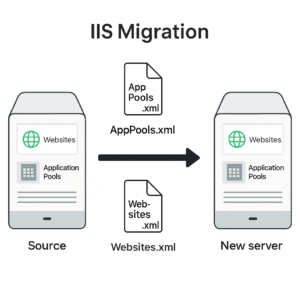


When migrating a Windows Server running IIS to a new machine, you can export all Application Pools and Websites in just a few commands — no need to manually recreate each site.
This is a quick, reliable way to replicate your IIS setup on a new server.
⚠️ Important Notes Before Migration
1️⃣ Verify IIS Setup
Before importing, ensure:
-
All IIS roles, modules, and features installed on the old server are also installed on the new one.
-
The website content (files) has already been copied to the same directory paths.
-
Folder permissions and NTFS rights match the old server.
If the content or permissions differ, IIS might import the sites but fail to start them properly.
2️⃣ Domain Requirement
This method only works correctly if both servers are in the same domain.
Application Pools that use domain accounts (instead of the default ApplicationPoolIdentity) will fail to start on a different domain, because IIS can’t find the associated user.
3️⃣ Certificates Are Not Exported
SSL bindings and certificates are not included in this export.
You must manually export and import them using the Certificates MMC or PowerShell (Export-PfxCertificate / Import-PfxCertificate).
4️⃣ Anonymous Authentication Configuration
If any site uses Anonymous Authentication with a specific user (different from Application Pool Identity), this setting won’t be imported automatically.
You’ll need to manually reconfigure it after import.
⚙️ Export the Application Pools and Websites
Run the following commands in Command Prompt (as Administrator) on the source server:
%windir%\System32\inetsrv\appcmd list apppool /config /xml > C:\AppPools.xml
%windir%\System32\inetsrv\appcmd list site /config /xml > C:\Websites.xml
These commands create two XML files:
-
C:\AppPools.xml→ contains all Application Pool configurations -
C:\Websites.xml→ contains all IIS Website configurations
Copy these two files to your new server (same drive and path is recommended).
🧰 Clean Existing IIS Configuration (Optional)
If your destination server already has sites or app pools configured, you can clear them before importing to avoid conflicts.
Run these commands in PowerShell (as Administrator):
Import-Module WebAdministration
Get-Item IIS:\Sites\* | Remove-Item -Recurse -Force
Get-Item IIS:\AppPools\* | Remove-Item -Recurse -Force
⚠️ Warning: This will permanently delete all existing sites and application pools from IIS.
🔁 Import the Configuration on the New Server
Now, import the exported XML files on the destination server:
via CMD
%windir%\System32\inetsrv\appcmd add apppool /in < C:\AppPools.xml
%windir%\System32\inetsrv\appcmd add site /in < C:\Websites.xml
✅ Quick Checklist
-
Install the same IIS roles, modules, and features as on the old server
-
Copy all website content and folder permissions to the same directories
-
Export the Application Pools XML file
-
Export the Websites XML file
-
(Optional) Clear existing IIS configuration
-
Import both XML files on the new server
-
Re-add SSL certificates manually
-
Reconfigure Anonymous Authentication users if necessary
🧾 Automating the Migration with PowerShell Scripts
To simplify the migration process, you can use two PowerShell scripts — one executed on the source server and the other on the destination server.
The origin script automatically exports all IIS Application Pools, Websites, and Anonymous Authentication configurations, copies them to the target server, and remotely triggers the import process.
The destination script clears any existing IIS configuration, imports the exported XML files, reapplies Anonymous Authentication settings, and restarts IIS to finalize the migration.
These scripts make the entire process repeatable, faster, and reduce human error during large-scale IIS server migrations.
URL for the scripts: https://github.com/covtandre/IIS_Migration/tree/main